Clipping to Notion offline
Notion is a cloud app, so a clip ultimately needs the network. The question that decides whether you lose work isn't whether the save can happen now — it's what the extension does with your content when it can't.
Can you clip to Notion with no connection at all?
Not in the sense of the page appearing in your workspace. Creating a Notion page means an authenticated API call to api.notion.com, and no extension can fake that. What an extension can do is finish the half that doesn't need the network — reading the DOM and extracting the article — store the result locally, and send it the moment a connection exists.
That distinction is the whole topic. Extraction is local. Delivery is remote. A clipper that conflates them throws away a completed local step because a later remote step failed.
What “Please go online to save to Notion” actually means
People hit this error with a working connection, on the very page they just loaded, which makes it feel like a bug in the connectivity check. Partly it is — but the message is better read as “a request to Notion did not succeed,” because an extension generally can't distinguish between these:
- Genuinely offline. Aeroplane, dead wifi, tunnel.
- Captive portal. Hotel or café wifi that resolves DNS and answers HTTP but intercepts everything until you accept terms. The browser looks online; the API call never lands.
- VPN, proxy or DNS filter. Corporate TLS inspection and some privacy extensions block or mangle the API request.
- Notion API degradation. A 5xx or a rate-limit response from Notion's side.
- Timeout on a large clip. A long article means a large request body; a slow link can exceed the request timeout while remaining perfectly “online”.
- Expired session or revoked credential. Some auth failures surface as generic network errors.
This error is common enough to be a recognisable category: 25 of the 202 public Chrome Web Store reviews of the official Notion Web Clipper rated three stars or lower mention a “go online” error (measured Sept 2026). The complaint is rarely about the delay. It's that the clip is gone.
The real cost: the clip, not the wait
Consider what you lose when a save fails without a queue. You found the page, decided it was worth keeping, waited for extraction, and got an error. Now you need the tab still open, the page still reachable (it may be behind a paywall meter you've now spent, or a search result you can't retrace), and the motivation to do it again. In practice this is where clips quietly stop happening — a few lost ones and people go back to pasting URLs into a note.
A delay of ten minutes costs nothing. A lost clip costs the entire reason you installed a clipper.
How an offline clip queue works
The design is simple and it's the reason Clipwise behaves differently here:
-
Extract locally, immediately
The article body, tables, code blocks and captions are pulled from the DOM in your browser. No network involved, so this always succeeds whatever the connection is doing.
-
Attempt the save
If the API call succeeds, you're done — the page appears in Notion and nothing is queued.
-
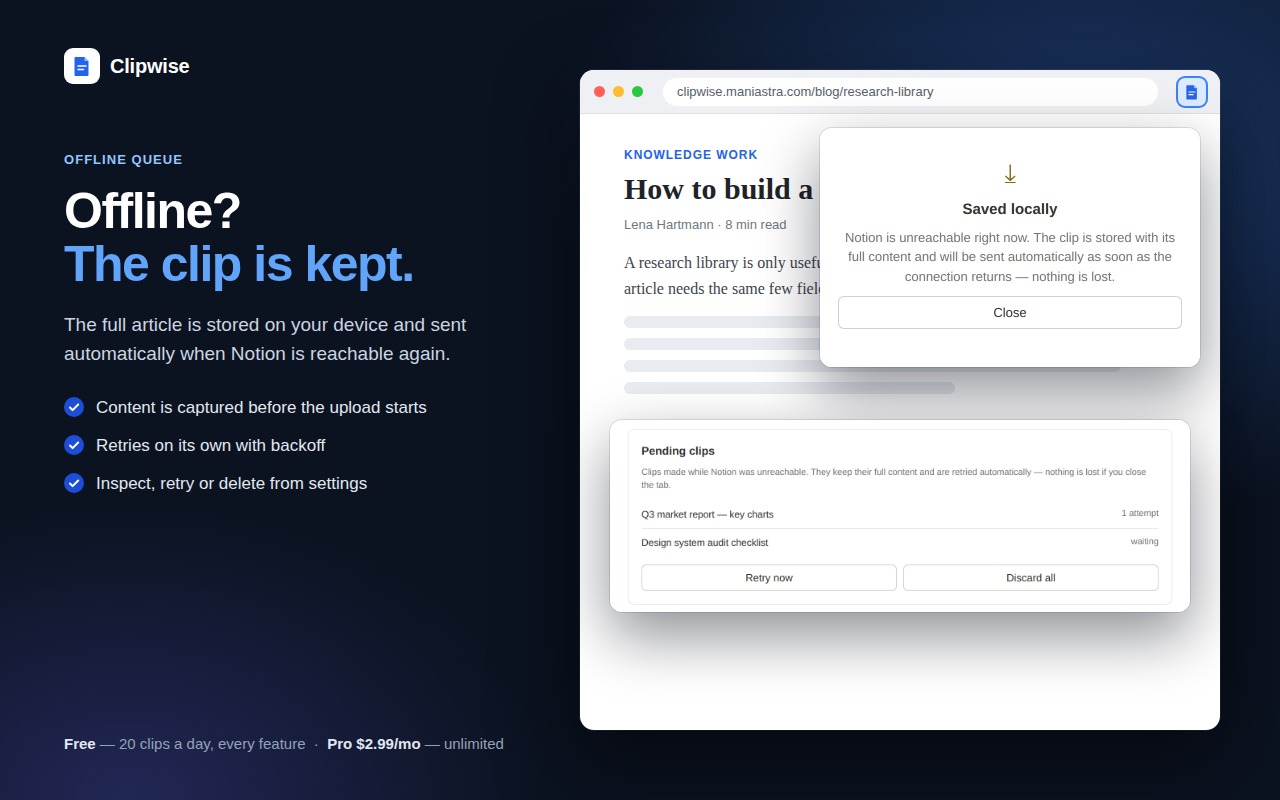
On failure, persist instead of discarding
The already-extracted content and your edited properties are written to local extension storage. Critically, this includes the content, not just the URL — so a retry doesn't need the tab, or the page, to still be there.
-
Retry with exponential backoff
Retries space out progressively rather than hammering the API, so a flaky connection or a Notion outage resolves itself without you doing anything.
-
Land the clip and clear the queue
When a retry succeeds the page is created with the properties you set at clip time, and the queued item is removed.
Why storing the URL isn't enough
A simpler design — queue the URL and re-fetch later — sounds equivalent but fails in exactly the cases that matter:
- Authenticated pages. A fetch from a background worker doesn't carry the session state of your tab. Logged-in content, internal tools and dashboards come back wrong or as a login page.
- Paywall meters. The article you could read in the tab may not be readable on a fresh request.
- Client-rendered pages. Fetching the HTML of a single-page app gets you an empty shell. The content only exists after JavaScript ran — in the tab you already had.
- Pages that changed or vanished. Live blogs, rotating homepages, deleted posts.
- Your selection. If you highlighted a passage, a re-fetch has no idea which one.
Queueing the extracted content avoids all five, at the cost of using more local storage. That's the right trade.
Practical habits for unreliable connections
- Clip while the tab is open and loaded. Extraction needs the live DOM. Clip first, close later — don't save the tab for when you're back online.
- Scroll to the bottom before clipping. Lazy-loaded article bodies don't exist in the DOM until they've been scrolled past, and on a slow connection they load last.
- Select, when the connection is bad. A selection-based clip has a smaller payload and extraction can't be defeated by half-loaded page furniture.
- On captive-portal wifi, finish the portal first. It's the single most common cause of “online but nothing works”.
- Don't uninstall an extension with a non-empty queue. Local extension storage goes with it.
If your current clipper has no queue: when the error appears, select the article text and copy it to the clipboard before retrying. Ugly, but it means a second failure doesn't cost you the page. See Notion Web Clipper not working for the full fix list on that error.
Related guides
- Notion Web Clipper not working — fixes by symptom
- Save highlighted text to Notion — selection-based clipping
- Notion Web Clipper alternative — honest comparison