Save highlighted text to Notion
Most of the time you don't want the article — you want three paragraphs from it. Selection-based clipping is both the better habit and, as it happens, the most reliable way to get content into Notion at all.
Why selection is more reliable than whole-page clipping
Whole-page clipping is a guess. The extension inspects the DOM, scores candidate containers, and picks the one that looks most like an article body. When a page is mostly article, that guess is good. When it's a consent overlay plus a promo rail plus a lazy-loaded body plus a related-posts grid, the guess goes wrong — which is why wrong or partial extraction shows up in 40 of the 202 lowest-rated public Chrome Web Store reviews of the official Notion Web Clipper (measured Sept 2026).
A selection isn't a guess. You've told the extension exactly which DOM range you mean, so there's no heuristic left to fail. That makes highlighting the universal fallback for any page that refuses to clip properly, and the default behaviour worth adopting even on pages that work.
How to do it
-
Select the passage
Click just before the first word, then shift-click after the last. For long passages this beats dragging, which tends to overshoot and start auto-scrolling. Double-click selects a word, triple-click a paragraph.
-
Clip without losing the selection
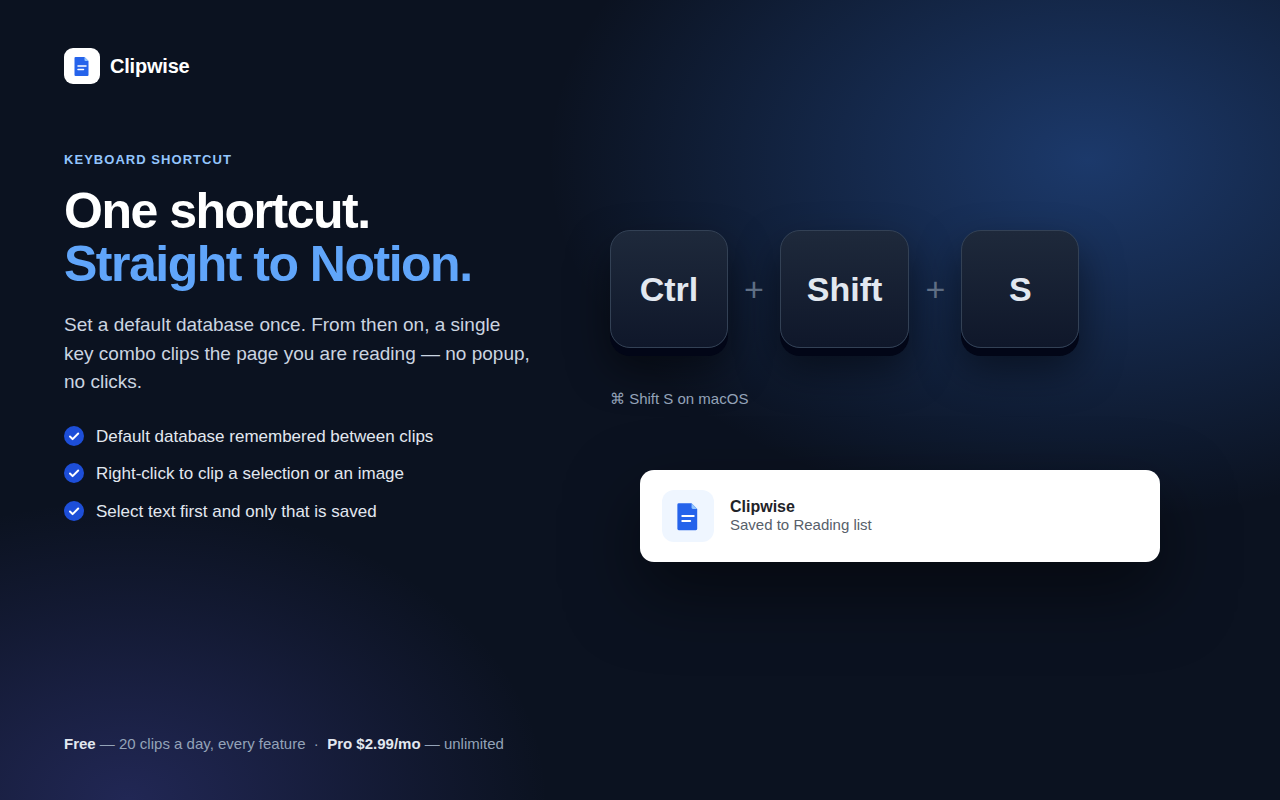
Use the keyboard shortcut — in Clipwise,
Ctrl+Shift+S. Clicking around the page before clipping can collapse your selection; a shortcut can't. This is the main practical reason to learn it. -
Title it for your future self
A selection has no headline of its own, so clippers usually fall back to the page title. “The surprising truth about X” tells you nothing in a list of 400 rows. Replace it with what the quote actually says: “X: 40% of failures are config, not code”.
-
Set properties while you still have context
Tags and status cost two seconds now and ten minutes of archaeology later. Clipwise pre-fills the destination database's properties and shows you the form before the page is created, so this happens in the same keystroke-run as the clip.
Keeping excerpts attributable
An excerpt with no source is a liability. You'll find it in six months, not remember whether it's a quote or your own note, and either misattribute it or throw it away. Two cheap rules prevent that:
- Always keep the URL as a property. Add a
URL-type property to your destination database and let the clipper fill it. One field, permanently solves the “where did this come from” problem. - Separate quote from commentary. Put the clipped text in the page body and your own thinking in a dedicated
Notesproperty or under a clear heading. If the two blur together you lose the ability to quote safely.
If you clip research-grade material, add an Author and a Published date property and fill them at clip time. Nothing automates this reliably — bylines and dates live in wildly inconsistent markup — so the pre-save form is where it has to happen.
What happens to formatting inside a selection
Selections carry structure, and whether that structure survives depends entirely on the clipper. The things most commonly lost:
| In the selection | What usually arrives | What should arrive |
|---|---|---|
| A table | Flattened rows of text | A Notion table |
| A code block | Plain paragraph, language lost | Code block with language set |
| Nested lists | Flat single-level list | Preserved nesting |
| A figure with a caption | Image only, caption dropped | Image plus caption |
| Bold / italic / links | Usually fine | Preserved inline |
If you excerpt documentation, specs or data-heavy writing, test a table and a code block before you commit to any tool — it's the difference between an archive you can read and one you have to go back to the source for. Clipwise runs a dedicated table-extraction pass and keeps code-block languages and figure captions, which is the specific reason it exists.
Clipping several passages from one page
There's no multi-select in a browser, so you have two workable patterns:
- One clip per passage. Each excerpt becomes its own row, each gets its own title and tags. Best when the passages are about different things — which is usually why you highlighted several.
- One wide selection, trimmed in Notion. Select from the first passage to the last, clip once, then delete the middle inside Notion. Faster when the passages are adjacent and related.
Avoid the third pattern — clipping the whole page intending to trim later. You won't, and you'll have a database of 2,000-word pages where you wanted quotes.
If a selection still clips wrong
Rare, but it happens:
- The selection spans a shadow DOM or an iframe. Embedded widgets and some comment systems live in separate documents and a selection crossing that boundary gets truncated. Select within one region at a time.
- The page hijacks copy events. Some sites intercept selection to append a “read more at” footer or block it outright. Try the print view or reader mode, which usually has no such script.
- The clip fails to save. That's a network problem, not a selection problem — and with most clippers the extracted text is discarded when the save errors. See clipping to Notion offline for why and what to do.
Related guides
- How to save articles to Notion — full setup including the integration token
- Clip to Notion offline — queued clips and the “go online” error
- Notion Web Clipper alternative — honest comparison